How to add a Bible verse widget to your Android Home Screen
Learn how to add a Bible verse widget to your Android Home Screen with Pray Focus.
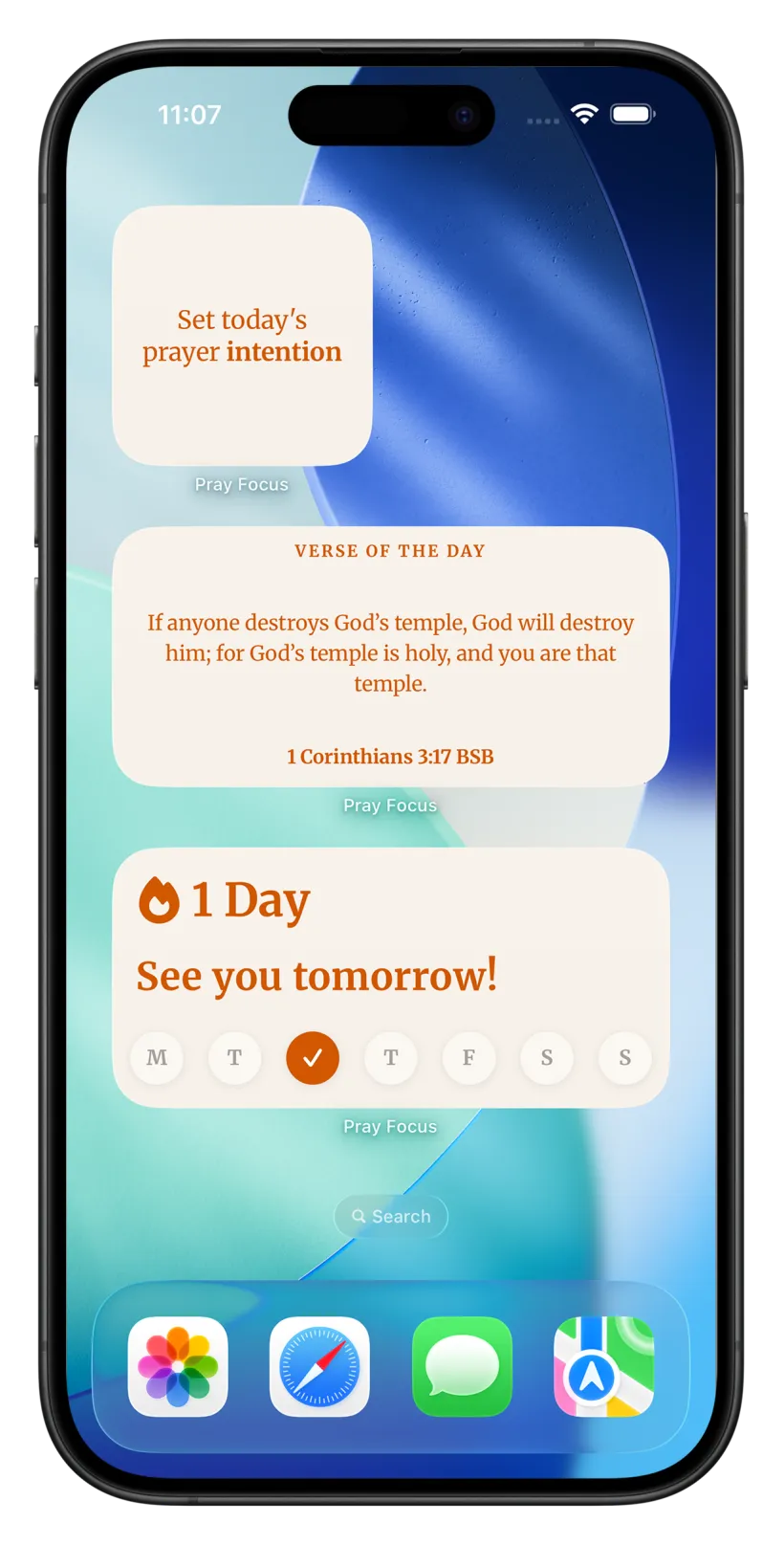
Step 1
Get the widget ready
- 1
Install Pray Focus from Google Play.
- 2
Open the app once so it can load today’s verse.
Step 2
Add the widget to your Home Screen
- 1
On any Home Screen, touch and hold an empty space until a menu appears.
- 2
Tap “Widgets” in the menu, just below Wallpaper & style.
Touch and hold, then tap Widgets (steps 1 to 2). - 3
Scroll to Pray Focus, then tap it to see its widgets.
- 4
Touch and hold the Verse of the Day widget until your Home Screens appear.
- 5
Slide the widget to where you want it, then lift your finger to place it.
Find Pray Focus, then drag it out (steps 3 to 5). - 6
To resize it, touch and hold the widget and drag the dots on its edges, then tap outside the widget when you are done.
These steps follow a Google Pixel on stock Android. Samsung and other brands put the Widgets button in a slightly different place, but the flow is the same: touch and hold the Home Screen, open Widgets, then drag Pray Focus into place.
Download today for free
It takes 2 minutes to get started. Download this Christian prayer app, set up the app blocker, and begin building a praying habit.

Learn to pray.Make it a daily habit.
One email at a time, at your pace
Join our free email course and learn simple, time-tested ways to pray, with one small thing to try each time, so prayer slowly becomes part of your day.
- 8 short lessons: the Daily Examen, Lectio Divina, ACTS and more
- One tiny exercise each time, so praying becomes a habit
- Gentle and practical, never preachy. Free, forever.
Frequently asked questions
More widget guides
Widget Guides
How to add a Bible verse widget to your iPhone Home Screen
Widget Guides
How to add a Bible verse widget to your iPhone Lock Screen
Widget Guides
How to add a Bible verse widget to your iPad Home Screen
Widget Guides
How to add a Bible verse widget to your iPad Lock Screen
Widget Guides
How to add a Bible verse widget to your Android Lock Screen
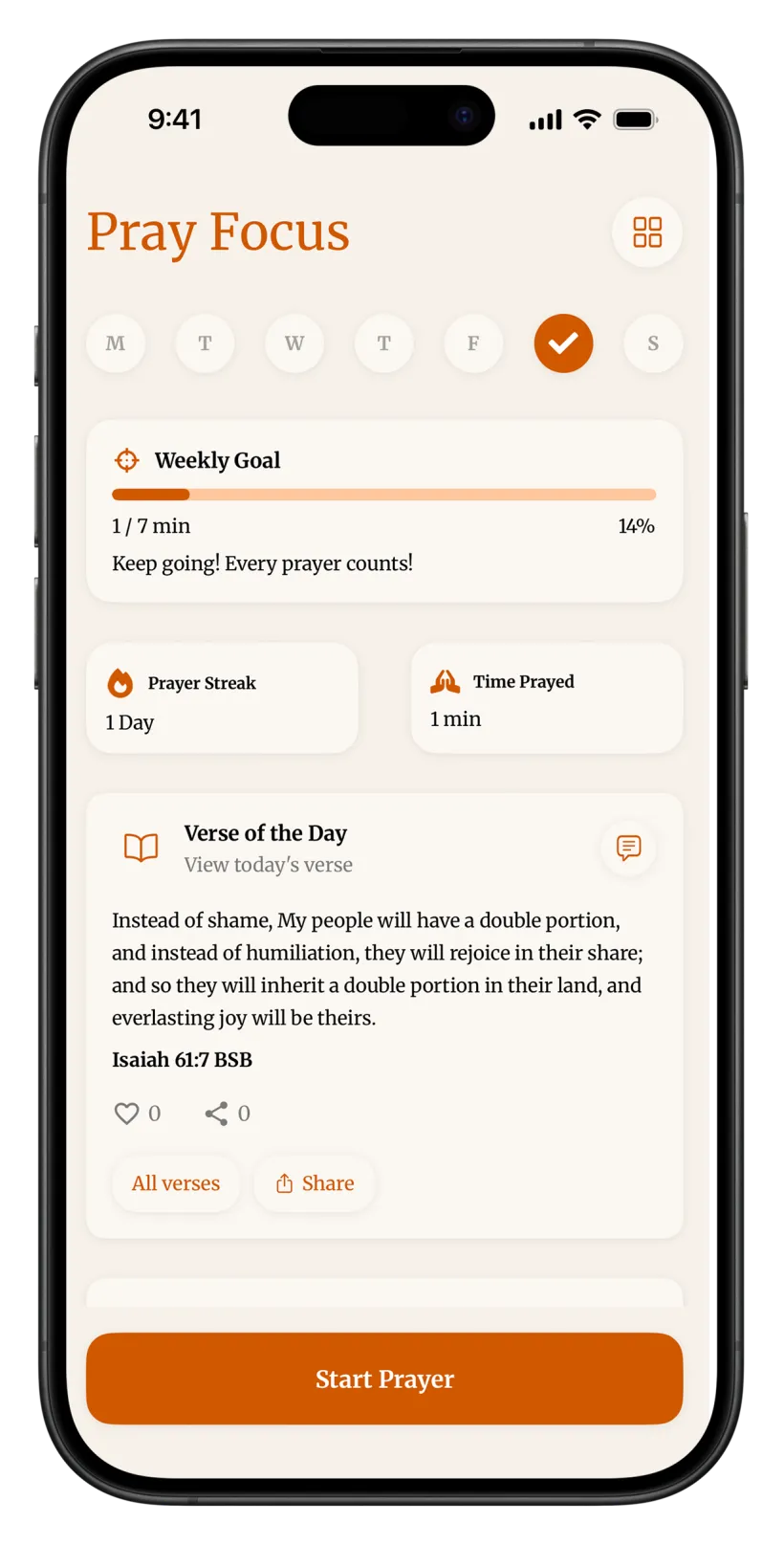
APP BLOCKING
Pray before you scroll.
DAILY SCRIPTURE
From 3 Christian traditions.
AI BIBLE CHAT
Talk to the Bible.
Turn mindless scrolling into a prayer habit